Call Us
Fast Local Service

Support & Help Center

Step-by-step guides, FAQs, and ways to reach our team

How-To Guides

Expand a guide below for step-by-step instructions.

Browsing & choosing products

Find the right product using categories, search, and product cards.

Visit the Products page

Open Products from the main navigation to browse the full catalog.
Product catalog page with navigation and product grid
Start from /products anytime to see everything in one place.

Filter by category

Use category filters (for example vinyl banners, vehicle, embroidery, or engraving) to narrow the list.
Product listing with category filters applied

Search for products

Use the search field to find items by name or description.
Search input highlighting matching products

Select a product

Click a product card to open the configuration and design page for that item.
Product card click leading to design page
The design page combines options with the editor — no separate detail page. Next: Configuring your product.

Configuring your product

Set material, size, finishing options, and dimensions on the product page before you open the editor. Available choices depend on the product you selected.

Open the product design page

From the catalog, choose a product to open its configuration page. This is where you pick variant options and see pricing based on your choices.
Product page with configuration area and summary
Material is usually the main variant: it drives inventory, base price, and which films are in spec for that listing. Other fields (size, sides, finishing) are layered on in the storefront.

Choose material (and variant)

Pick the substrate or film that matches where the graphic will live and how long it must last. The dropdown lists every material offered for this product.
Material or variant selector on product page
Quick suggestions:
  • Vehicles / deep curves: cast or high-flex outdoor grades.
  • Flat signs & walls: calendered or standard outdoor vinyl is often ideal.
  • Night visibility: reflective options when listed.
  • Banners & hanging graphics: match material to indoor vs outdoor exposure; add hem / grommets in a later step if needed.

More detail: Materials & use cases (FAQ).

Set size and dimensions

Select a preset size if offered, or enter width and height for custom sizing. For products priced per square foot, dimensions update the estimated price.
Size preset or custom width and height inputs

Printed sides and finishing

Choose single- or double-sided printing when available. Add options such as hem or grommets if the product supports them.
Printed sides, grommets, or finishing options

Confirm options and price

Review your selections and the live price before designing. Change any option if something looks wrong.
Order summary or price preview on product page

Continue to the editor

When configuration is complete, open the design editor to place artwork. You can revisit these options later if you need to adjust before checkout.
Control to launch design editor after configuration

Using the design editor

Upload art, build your layout, and run quality checks—after your product options are set on the page above.

Open the design editor

Use the action to launch the canvas editor when you are ready to create or adjust artwork.
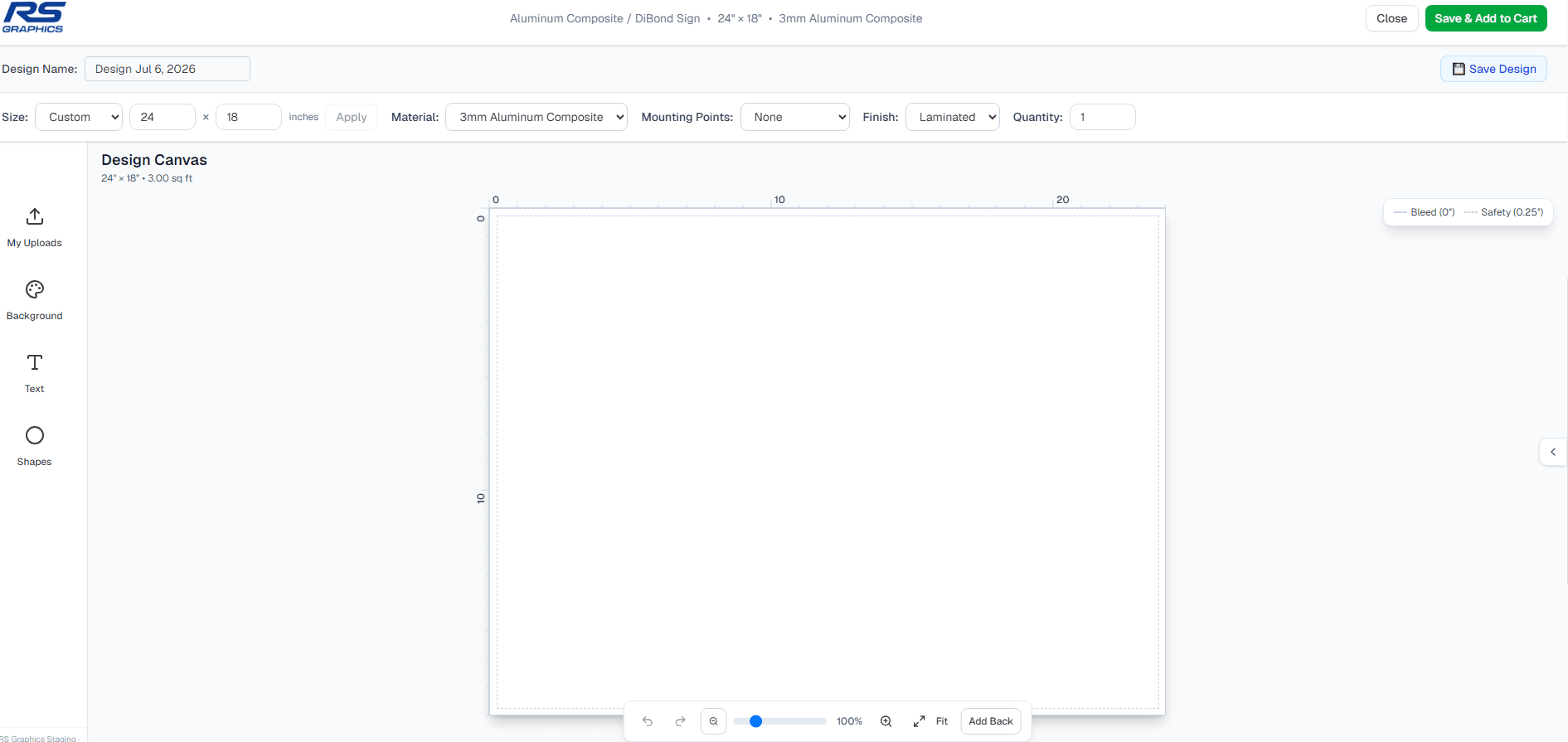
Button or control to open the fabric design editor
New to options? See Configuring your product.

Upload your artwork

Add PNG, JPG, SVG, or PDF files. For PDFs, select the page you want to place on the canvas.
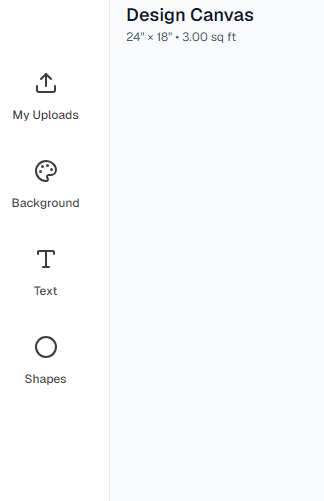
Upload dialog and PDF page selection
Prefer 300 DPI rasters at final print size; vectors stay sharp at any scale.

Add text and shapes

Use the toolbar for text, rectangles, circles, lines, arrows, and color or font choices.
Editor toolbar with text and shape tools

Arrange and edit objects

Select items to move, resize, rotate, or reorder layers. Use the sidebar for finer controls.
Canvas selection handles and layer sidebar

Check design quality

Review DPI, bleed, and safe-area warnings so your file prints as expected.
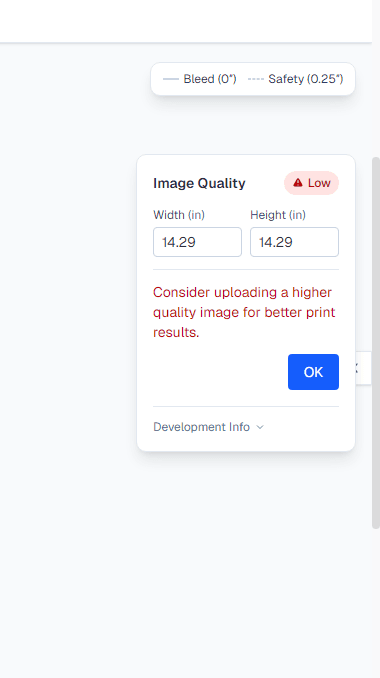
Quality or DPI warning panel in the editor

Save or add to cart

Save to My designs (signed-in) or add the configured item to your cart to continue shopping.
Save design and add to cart actions

Cart & checkout

Review your cart, adjust items, and complete payment securely.

Review your cart

Confirm line items, previews, and quantities before checkout.
Shopping cart page with previews and quantities

Edit a design from the cart

Use Edit on an item to return to the design page with your artwork loaded.
Cart line item with edit action

Proceed to checkout

Start checkout when you are ready to enter shipping and payment.
Checkout button from cart page

Enter contact information

Provide email and shipping details so we can fulfill your order.
Checkout contact and shipping form

Choose shipping method

Pick standard shipping or local pickup in Pembroke when offered.
Shipping method selection including local pickup
Local pickup address: 207 Paul Martin Drive, Pembroke ON.

Enter payment details

Pay with your card through our secure Stripe checkout flow.
Stripe payment element on checkout page

Order confirmation

After payment succeeds, review the confirmation summary on the success page.
Order success confirmation screen

Ordering custom apparel

Configure color and size, choose blank or decorated, set up DTF or embroidery, and add artwork before checkout.

Browse apparel and open a product

Open Products from the main navigation and filter or search for shirts, hoodies, or other apparel. Click a product card to open its configuration page.
Product catalog filtered to apparel with a product selected
Start from /products and use category filters such as embroidery or apparel when available.

Pick color and size

Select your garment variant from the option dropdowns (for example Color and Size). Apparel uses fixed variant pricing, not square-foot dimensions.
Apparel product page with color and size variant selectors

Choose Order blank or Customize

In the Decoration section, pick Order blank for an undecorated garment, or Customize to add DTF, embroidery, or other decoration offered on that product.
Decoration panel with Order blank and Customize toggle

Set decoration method, size, and placement

For each location, choose DTF or embroidery when both are available, select a print or stitch size tier, and pick where the artwork appears (for example left chest or full back). Add multiple placements if needed.
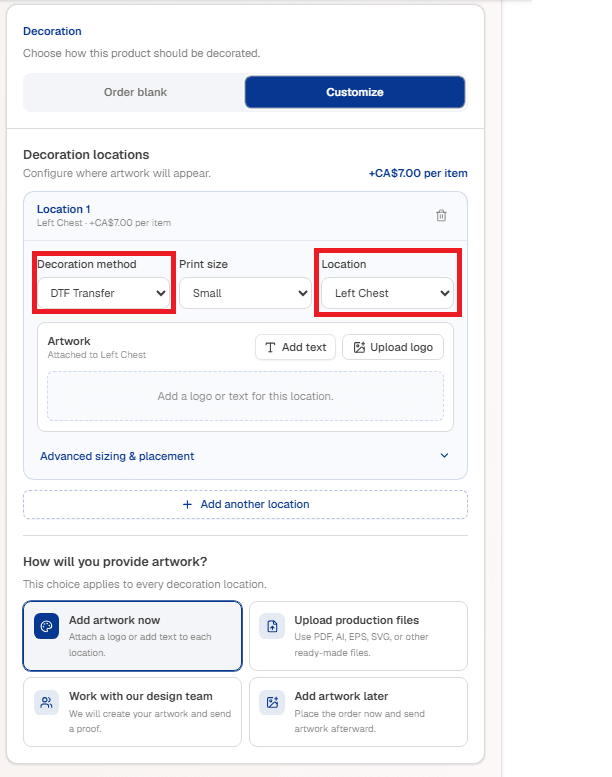
Decoration location controls with method, size tier, and placement
Not sure which method to use? See DTF vs. embroidery (FAQ).

Add artwork

Choose how to supply your design: add a logo or text inline, upload production files, design online, work with our design team, or add artwork later. Complete artwork for each placement before adding to cart.
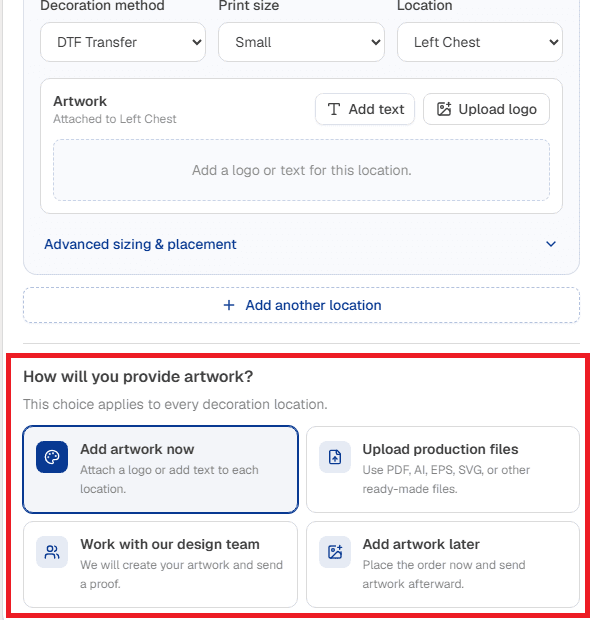
Artwork method cards and inline logo upload on decoration panel
Decorated orders usually include a proof by email before production. See Artwork & proof (FAQ).

Review pricing and add to cart

Confirm the live price breakdown (garment base plus decoration per placement), set quantity, then add to cart and proceed to checkout when ready.
Order summary showing garment and decoration pricing with add to cart

Frequently Asked Questions

Find answers about RS Graphics. Browse guides above or search below — still stuck? Contact us.

Still Need Help?

Can't find what you're looking for? Contact us or submit a detailed quote request.